
A+ Tools adds an A+ Tools tab to the Revit ribbon with a set of productivity tools that reduce repetitive tasks. The curtain wall tools turn a curtain wall into a finished drawing package — elevation, plan, dimensions, tags, schedules and a placed sheet — and keep your office's drawing standards in reusable settings profiles. This page takes you from downloading the installer to your first drawing: what you need, how to install, how to sign in (or start a free trial) and where everything is on the ribbon.
System requirements
| Requirement | Details |
|---|---|
| Revit | Autodesk Revit 2026, update 2026.5 or later, or any release of Revit 2027. |
| Windows | 64-bit Windows that runs your Revit version. |
| Installing | Administrator rights on the computer (the installer installs for all users of the computer). |
| Internet | Needed to sign in, to start a trial and to check for updates. Free and trial accounts must be online every time they run a tool; paid licences can work offline for up to 7 days. See Licensing and credits. |
| Browser | Your default web browser is used for signing in and for the licence portal. |
Note — There is one installer per Revit year: A+ Tools for Revit 2026 and A+ Tools for Revit 2027. If you use both Revit versions, install both — see Side-by-side Revit versions.
Installing A+ Tools
Download the latest installer (an .msi file named like AedificonAPlus-2026.x.x.x.msi) for
your Revit version. You find it on the Download page of
www.aedificon.ai, or on the Autodesk Marketplace (marketplace.autodesk.com).
Close Revit.
Double-click the
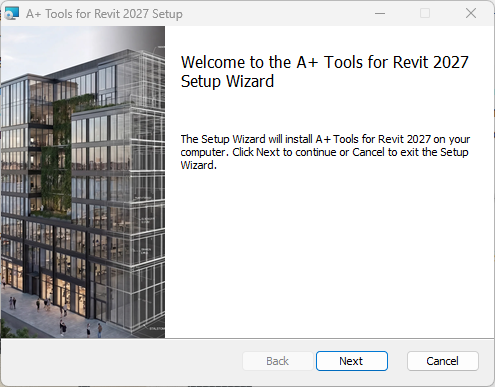
.msifile. Windows asks for permission to make changes — the prompt shows A+ Tools for Autodesk Revit 2026 (or 2027) and Verified publisher: Aedificon AB. Click Yes.On the Welcome page, click Next.
Read the licence agreement, tick I accept the terms in the License Agreement and click Next.
On the Installation options page, choose whether to start a trial and where to install (see Installation options below), then click Next.
Click Install, wait for the progress bar, and click Finish on the Completed the Setup Wizard page.
Start Revit. The A+ Tools tab appears in the ribbon.
Installation options
| Option | What it does | Default / tip |
|---|---|---|
| Get me started on a 14-day trial | Starts an anonymous 14-day trial automatically the first time you open Revit. | Unticked. You can also start the trial later from the sign-in window. |
| Install at | The installation folder for the plugin. | Default is C:\Program Files\Aedificon\A+ for Revit 20XX\ |
What gets installed where
| What | Where |
|---|---|
| The plugin | The folder you chose (default C:\Program Files\Aedificon\A+ for Revit 20XX\) |
| Revit's add-in manifest registration | Revit's own add-ins folder for that Revit year |
| The sample repository with the default settings, and the template for your personal settings file | C:\ProgramData\Aedificon\A+ for Revit 20XX\ |
| Your personal settings, licence information and log files (created when you first start Revit) | %LOCALAPPDATA%\Aedificon\A+ for Revit 20XX\ |
Upgrading to a new version
When a new version is available, A+ Tools notifies you when Revit starts. You can also check yourself from A+ Tools › Check for updates — see The A+ Tools menu. To upgrade:
- Close Revit.
- Run the new installer without uninstalling the old version first.
- After the licence agreement, the wizard shows Ready to upgrade with the folder A+ Tools is installed in. Click Upgrade.
The upgrade keeps your install location, your personal settings and your sign-in. The settings stored in your projects are preserved, and projects saved with the previous version open and run normally.
Note — You cannot install an older version over a newer one. You need to uninstall the newer A+ Tools first.
Side-by-side Revit versions
Each Revit year has its own A+ Tools edition, with its own folders and its own personal settings. If you work in both Revit 2026 and Revit 2027, install both editions — they do not interfere with each other. Your Aedificon account and licence are the same in both.
Unattended silent installation
The installer supports unattended deployment. Use:
msiexec /i AedificonAPlus-<version>.msi /qn
msiexec /i AedificonAPlus-<version>.msi /qn APLUS_START_TRIAL=1 APLUSINSTALLFOLDER="D:\Apps\A+ for Revit 2026"
APLUS_START_TRIAL=1 is the same as ticking the trial checkbox; APLUSINSTALLFOLDER sets the
install folder. To pre-configure defaults for every new user on a computer (for example the
plugin language or the logging level), edit the installed template
C:\ProgramData\Aedificon\A+ for Revit 20XX\Settings.xml — it is copied to each user's personal
settings the first time they start Revit with A+ Tools.
The first time you start Revit
When Revit has finished starting, A+ Tools checks your licence in the background and then does one of two things:
- You ticked the trial checkbox in the installer — the 14-day trial starts automatically and no window appears. The tools are ready to use. A+ Tools › About A+ shows Plan: Trial.
- Otherwise — the A+ Tools Licence window opens and asks you to sign in.
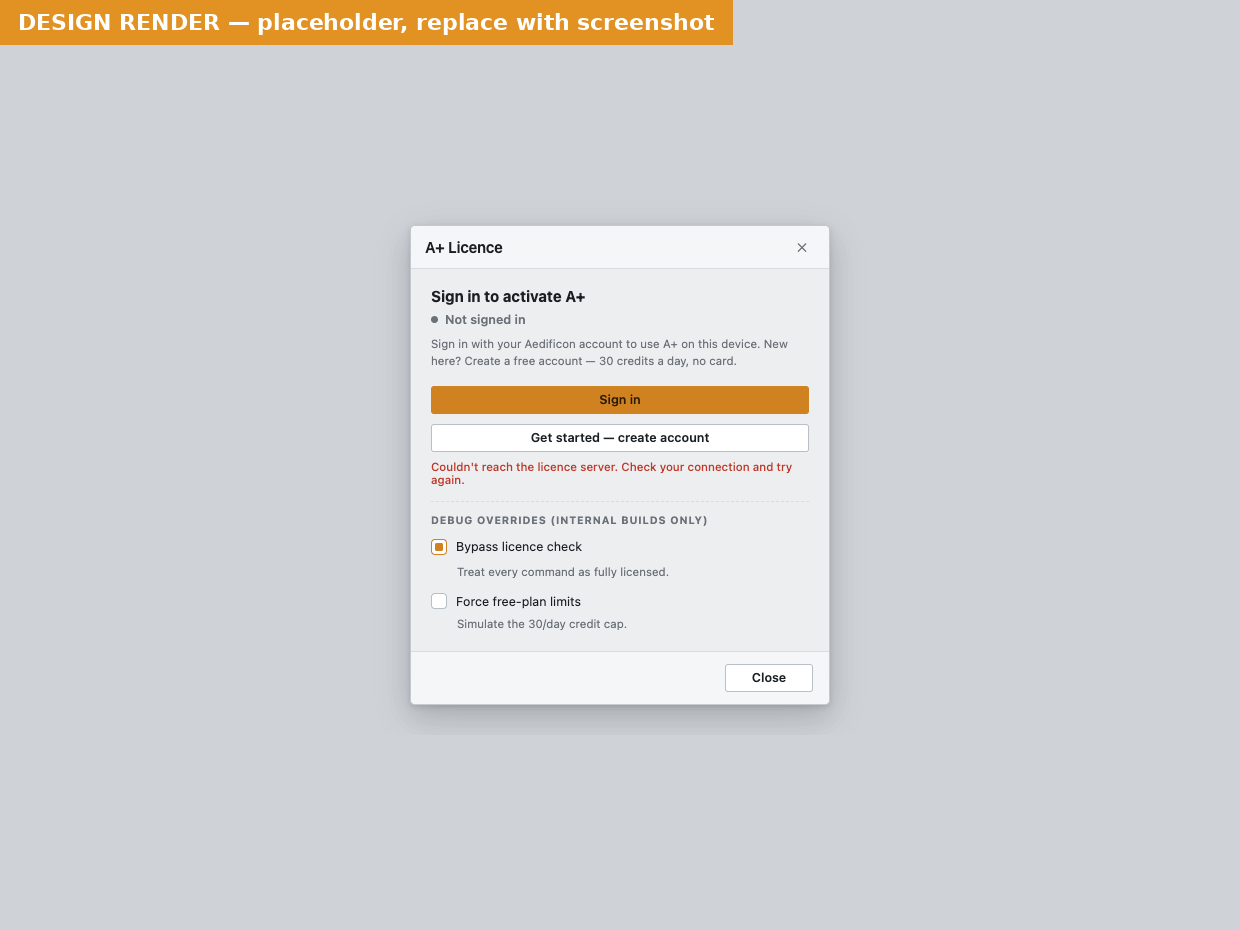
| Choice | What happens |
|---|---|
| Sign in | Opens your browser to sign in with your existing Aedificon account. |
| Create account | Opens your browser on the sign-up page. A free account gives you 30 credits per day and 100 per month, with no credit card required. |
| Just get me started on a 14-day trial | Starts the trial immediately — no account, no browser. Only shown on computers that have never had a trial or a licence. |
| Close | Closes the window without signing in. The drawing tools stay greyed out until you sign in or start a trial — use A+ Tools › Sign in when you are ready. |
The trial and the Free account are explained in Licensing and credits.
Signing in through your browser
- Click Sign in (or Create account). A new browser window opens on the Aedificon sign-in page.
- Sign in, or fill in the sign-up form. The first time, you may be asked to allow the A+ Plugin to access your account — accept.
- The browser shows You're signed in — You can close this window and return to Revit.
- Back in Revit, the A+ Tools Licence window closes by itself and the tools are ready. Your name now appears in the A+ Tools menu.
You stay signed in on this computer until you choose A+ Tools › Log out.
Tip — If you closed the browser window by mistake, simply click Sign in again; A+ Tools waits up to five minutes for the browser sign-in to finish.
If the browser shows Sign-in didn't complete, go back to Revit — the A+ Tools Licence window shows the reason in red under the buttons.
Verifying your email address (new accounts)
A new account must confirm its email address before it can be used:
- After you create the account, the A+ Tools Licence window changes to Please verify your email address — We sent a verification link to your inbox. Click it, return to A+, and then click Sign in below.
- Open the email from Aedificon and click the verification link.
- Return to Revit and click Sign in in the same window. This time the sign-in completes (usually without asking for your password again).
Tip — No email? Check your spam folder, and make sure you signed up with the address you are checking.
A tour of the A+ Tools ribbon tab
| Panel | Button | What it does |
|---|---|---|
| Aedificon | A+ Tools (menu) | Licence portal, Plugin settings, Help, Support, About A+, Check for updates, your account and Sign in / Log out. See The A+ Tools menu. |
| Curtain Wall | Curtain Wall Create Drawing | Creates a complete drawing package for a curtain wall: elevation and plan views, panel division, dimensions, tags, schedules, sheet placement and naming. See Curtain Wall Create Drawing. |
| Curtain Wall Utilities | Curtain Wall Create Panel Divisions | Re-divides the glass panels of a curtain wall to a standard width or a repeating pattern. See Curtain Wall Create Panel Divisions. |
| Curtain Wall Redimension Elevation | Re-creates the dimensions on an existing curtain wall elevation or section. See Curtain Wall Redimension Elevation. | |
| Settings | Transfer Settings | Copies Revit standards between your project and a repository. See Transfer Settings. |
| Settings Manager | All tool settings in one window. See Settings Manager. |
A few things worth knowing about the buttons:
- Greyed-out buttons — the drawing tools are greyed out until you are signed in or on a trial. They are also greyed out in views where they cannot work: Curtain Wall Create Drawing and Curtain Wall Create Panel Divisions need a view where you can pick a wall (plan, elevation, section, detail or 3D view), and Curtain Wall Redimension Elevation needs an elevation or section view to be active.
- Buttons that turn into menus — when you tick Add as menu item to ribbon on a settings profile, that tool's button becomes a drop-down list with one list item per profile, so you can run the tool with a specific custom profile in one click. See Settings profiles and repositories.
The default settings that ship
You do not have to set anything up before your first drawing:
- Ready-made settings profiles. The installer puts a sample repository on your computer — a small Revit template holding default settings profiles for the tools and the view templates, types and styles those profiles use. The first time a tool needs settings in a project, A+ Tools copies them into the project (you may briefly see Loading default settings...).
- Settings live in the project. From then on the settings are stored in the project itself, so everyone working on the project uses the same ones. Change them in the Settings Manager or from a tool's settings button.
- Your personal preferences — plugin language (follows Revit), logging level (Normal) and the repository paths — are in A+ Tools › Plugin settings. See The A+ Tools menu.
Tips
- If your office doesn't want to use the default settings, either create your own default settings profiles in the office template you use for new projects, or replace the default local files with your own during installation.
- To load custom settings into an existing project easily, use the central repository — see Settings profiles and repositories.
Your first drawing in five steps
- Open a project with a curtain wall and go to a floor plan where the wall is visible.
- Click A+ Tools tab › Curtain Wall panel › Create Drawing. (If a setting is missing, the settings window opens first; correct the settings and click OK.)
- Click the curtain wall.
- Click a point on the side of the wall you want to look at it from — the observation point. A+ Tools now creates the elevation, plan, dimensions, schedules and sheet.
- The command finishes automatically and opens the sheet with the new drawing. In Multiple mode, click Finish on the ribbon to commit the changes and end the command (or press Esc and choose whether to discard the changes or commit them and finish).
Note — On a Free account or a trial, each drawing package costs credits. Credits are only charged once a drawing has actually been created — cancelling before that costs nothing. See Licensing and credits.
Uninstalling
- Close Revit.
- Open Windows Settings › Apps › Installed apps (or Control Panel › Programs and Features).
- Find A+ Tools for Revit 2026 (or 2027) and choose Uninstall.
Uninstalling removes the plugin, Revit's add-in registration and the sample repository. It does not remove:
- the settings stored in your projects,
- your personal settings and log files in
%LOCALAPPDATA%\Aedificon\A+ for Revit 2026\— delete the folder by hand if you want a completely clean start, - this computer's registration on your licence.
Important — If you are leaving this computer for good, first choose A+ Tools › Log out, and then free the computer's place on your licence in the licence portal (Devices). Otherwise the computer keeps using one of your licence's device places. See Moving to another computer.
Where to get help
- This help — every tool page has a Messages you might see table, and Messages and troubleshooting lists every message.
- Support — A+ Tools › Support opens the Aedificon support page (www.aedificon.ai/support).
Note — When you contact support, you may be asked for your log files. Open them from A+ Tools › Plugin settings › Log folder › Open.
Plugin language
By default A+ Tools uses Revit's language (13 languages are currently supported). To use a different language, change Plugin language in Plugin settings and restart Revit.
Tips
- Not sure whether you are signed in? Open the A+ Tools menu: your name is shown above Log out. A dash (-) with Sign in below it means you are signed out.
Messages and troubleshooting
| Message | What it means | What to do |
|---|---|---|
| Autodesk Revit 2026 was not found on this computer. (installer) | The installer could not find Revit for this edition's year. | Install Revit first, or download the A+ Tools edition for the Revit year you have. |
| Your Autodesk Revit 2026 installation is older than 2026.5. (installer) | Your Revit 2026 is too old for A+ Tools. | Install the latest Revit 2026 update from Autodesk Access or manage.autodesk.com, then run setup again. |
| A newer version of A+ Tools for Autodesk Revit 2026 is already installed on this computer. (installer) | You ran an older installer over a newer version. | Keep the newer version, or uninstall it first if you really need the older one. |
| Please verify your email address | Your new account's email address is not confirmed yet. | Click the link in the verification email, then click Sign in again. |
| Sign-in did not complete. Please try again. | The browser sign-in was cancelled or did not finish. | Click Sign in again. |
| Sign-in failed: … | The sign-in service refused the sign-in; the reason follows. | Read the reason; try again or contact support. |
| All A+ Tools OAuth callback ports are in use. | Another program is using the local ports sign-in needs. | Close other programs, or ask IT about ports 53217–53221, and try again. |
| A trial has already been used on this computer or Autodesk account. | The 14-day trial is once per computer and per Autodesk account. | Sign in, or create a free account. |
| This computer is already set up with an A+ licence. Sign in to continue. | The computer has been used with an account before, so it cannot start a trial. | Sign in with your account. |
| Could not reach Aedificon to start your trial. | No connection to the licensing service. | Check your internet connection and try again. |
| Can't sign in on a corporate network | Sign-in uses a short-lived connection on your own computer (ports 53217–53221 on localhost) to receive the answer from the browser. |
If sign-in always fails with a message about ports, ask IT to allow these local ports. |
All licence messages are explained in Licensing and credits; everything else in Messages and troubleshooting.
Related pages
- The A+ Tools menu
- Licensing and credits
- The licence portal
- Curtain Wall Create Drawing
- Settings profiles and repositories
- Messages and troubleshooting
Last updated 2026-10-28.