

The Settings Manager gathers the settings of all three A+ drawing commands in one window. A rail on the left lists the commands; click one and its full settings form — Profile bar, tabs and buttons — appears on the right. The forms are exactly the same ones each command opens on its own, so a change made here is the same as a change made from the command.
| Where | A+ Tools tab › Settings panel › Settings Manager |
| You select | Nothing — it works on the active project |
| You get | The settings and profiles of Create Drawing, Create Panel Divisions and Redimension Elevation, saved in the project |
| Credits (Free licence) | None — opening settings is never charged, but you need a valid licence or trial. See Licensing and credits. |
Before you start
- Open the project whose settings you want to change. The Settings Manager always edits the active project — settings are stored in the project, not on your PC (see Settings, profiles and repositories).
- The first time you open it in a project without A+ settings, A+ Tools copies the default profiles in from the sample repository. A short splash, Loading default settings..., may appear.
- If the project was saved with a newer version of A+ Tools, the Settings Manager does not open; you see This project requires a newer version of A+ Tools. instead.
Step by step
- Click A+ Tools › Settings › Settings Manager.
- In the rail on the left, click the command you want to configure: Create Drawing, Create Panel Divisions or Redimension Elevation. Create Drawing is selected when the window opens.
- Use the Profile bar at the top of the form to choose (or create) the profile to edit.
- Change the settings. The Unsaved changes badge appears.
- Click Apply (or press Ctrl+S) to save and carry on, for example with another command in the rail.
- Click OK to save and close the Settings Manager, or Cancel to close it without saving the edits you have not applied.
The Settings Manager window
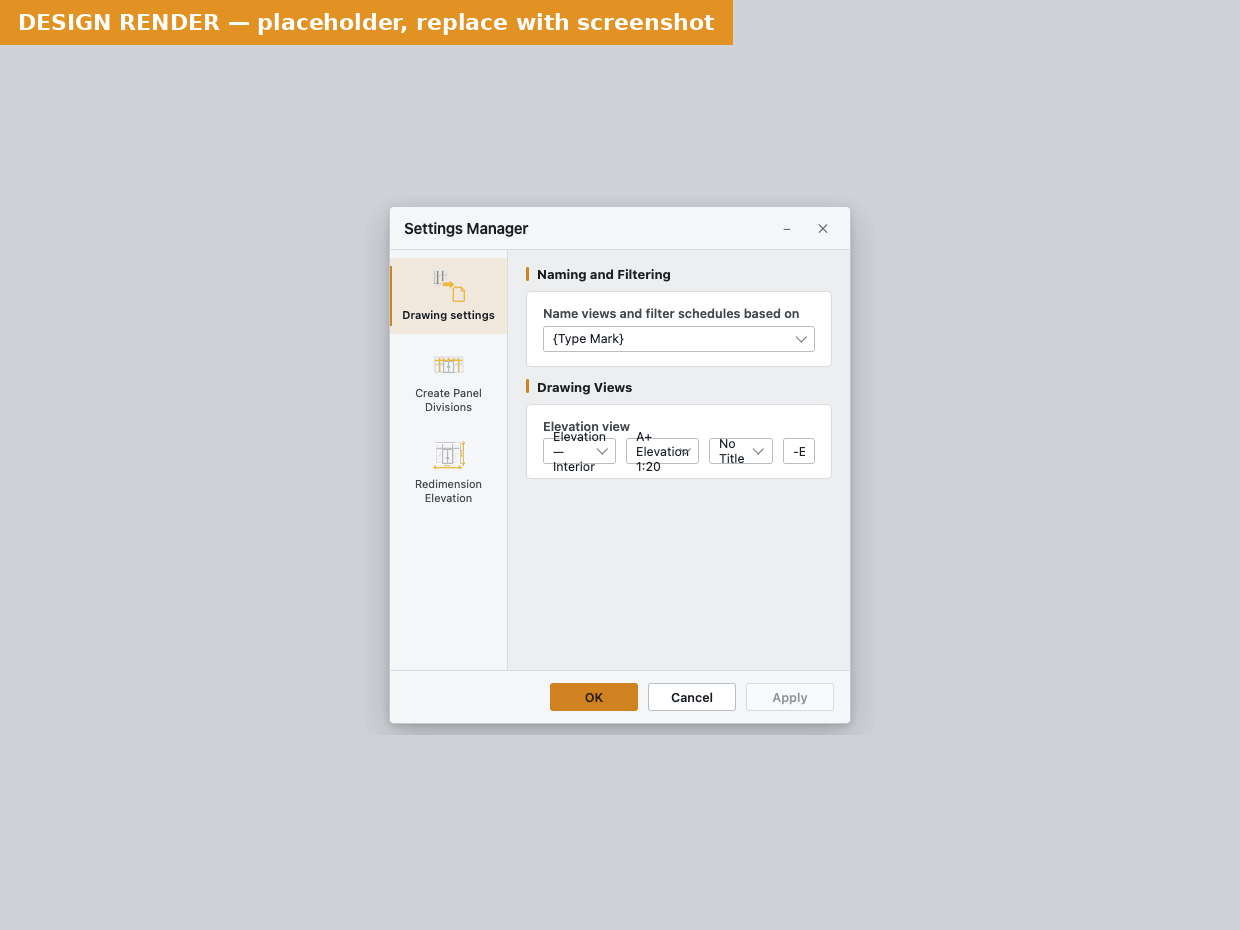 The Settings Manager with Create Drawing selected.
Command rail
The narrow column on the left shows one entry per command, with the same icon as on the ribbon. The selected entry is highlighted with an amber bar. The commands appear in ribbon order.
The settings forms
The right-hand side shows the selected command's own settings window, embedded. Every field is documented on the command's page:
| Rail entry | Same form as | Settings explained on |
|---|---|---|
| Create Drawing | Curtain Wall Drawing Settings | Create Drawing › Settings |
| Create Panel Divisions | Panel Division Settings | Create Panel Divisions › Settings |
| Redimension Elevation | Dimension Settings | Redimension Elevation › Settings |
Each form keeps its own Profile bar — dropdown, Duplicate, Rename, Delete, Load settings, Push, Add as menu item to ribbon — and its own Restore defaults… button. They work exactly as described in Settings, profiles and repositories.
The buttons at the bottom belong to the form you are looking at:
| Button | What it does in the Settings Manager |
|---|---|
| Apply / Ctrl+S | Saves this command's settings into its selected profile. The window stays open. |
| OK | Saves this command's settings and closes the whole Settings Manager. |
| Cancel | Closes the whole Settings Manager. Edits not yet applied are discarded. |
| Restore defaults… | Reloads this command's default profile from the sample repository (after confirming). |
Note — Closing the window with its ✕ also discards unapplied edits, without asking. Settings you already applied — and profile actions such as Duplicate, Rename, Delete and Load — are saved in the project either way, and can be undone with Revit's Undo (Save A+ settings).
Switching between commands
Each command's form is loaded fresh from its saved profile when you click it in the rail. If the form you are leaving has unapplied edits, A+ Tools warns you first:
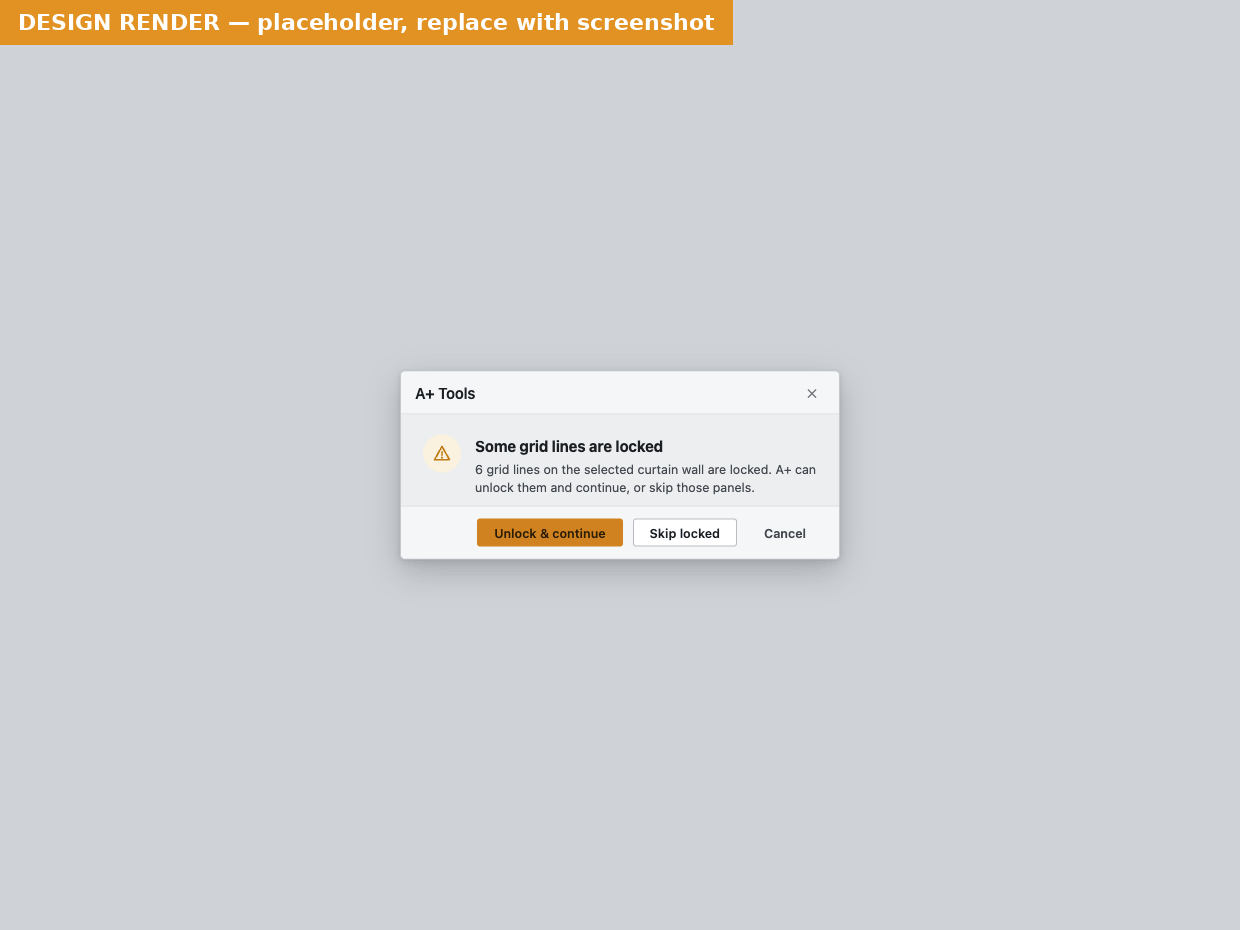 Leaving a command with unapplied edits.
- Switch & discard — throws the edits away and opens the other command.
- Cancel — stays on the current command with your edits. Click Apply first if you want to keep them.
Resizing
The Settings Manager opens centred on the screen and can be resized or maximised like any window — handy on a large monitor for the Create Drawing tabs with their reference image.
Other ways to open the settings
You do not have to go through the Settings Manager. Each command's settings window can also be opened directly — it is the same form, so the result is identical:
| From | Opens | Notes |
|---|---|---|
| Settings on the Options bar while a command is waiting for you to pick (in Revit 2027: the A+ panel added to the Modify tab) | That command's own settings window | Changes apply to the run that is about to start. Available until you make your first pick; then it is locked for the rest of the run. |
| Settings… at the bottom of a command's ribbon dropdown | That command's own settings window | Appears once a profile is on the ribbon. OK saves and runs the command; Cancel closes without running. See Profiles on the ribbon. |
| Settings button on the Curtain Wall panel | The Settings Manager | A backup button that only appears if A+ Tools cannot place its controls on Revit's Options bar. |
| Running a command that is not configured yet | That command's own settings window | Opens automatically so you can fill in what is missing. |
Tips
Tip — Use the Settings Manager when you set up a new office profile: configure Create Drawing first, click Apply, then switch to Redimension Elevation and use Load settings… to pull the matching dimension settings from the Create Drawing profile you just made.
Tip — Press Ctrl+S often. It saves the current command without closing the window, so switching commands in the rail never asks you to discard anything.
Tip — Each Apply is a separate Save A+ settings step in Revit's undo list. If you experimented and want to go back, close the Settings Manager and use Undo.
Tip — Every project has its own settings. If you have several projects open, make sure the right one is active before you open the Settings Manager.
Messages you might see
| Message | What it means | What to do |
|---|---|---|
| There are unsaved changes for this command. Switch anyway and discard them? | You clicked another command in the rail with unapplied edits. | Cancel, then Apply, then switch — or Switch & discard. |
| Some settings did not pass validation. | OK or Apply found invalid values in the Create Drawing or Redimension Elevation form; they are listed and marked red. (Panel Division Settings only marks the fields red.) | Correct the listed fields and try again. |
| This project requires a newer version of A+ Tools. | The project's A+ settings were saved by a newer plugin. | Click Upgrade and install the update. |
| Default Sample Project Not Found | No sample repository could be read when seeding the project. | See Settings, profiles and repositories. |
Licence messages (sign-in, offline grace and so on) are covered on Licensing and credits. The full list is on Messages and troubleshooting.
Related pages
- Settings, profiles and repositories — the Profile bar, Load, Push, Restore defaults, undo
- Create Drawing · Create Panel Divisions · Redimension Elevation
- Transfer Settings
- A+ menu — Plugin settings (language, repository paths)
Last updated 2026-10-02.